What is OneStop?
OneStop is a self-hosted workspace for files, photos, documents, spreadsheets, calendar, tasks, contacts and email. This guide covers server version 2.1.21, updated September 14, 2026. Your server stores the workspace; browsers and paired clients connect to it.
The server installer and Desktop Sync are different applications. Install the server on the computer that will host your library. Install Desktop Sync on a Windows computer that needs a synchronized folder connected to an existing server.
The download on this page is the Windows server installer. Ubuntu builds are separate previews: Linux installation, services, reboot, HTTPS and recovery still require qualification. The Windows EXE does not install an Ubuntu server.
What’s new in 2.1.21
Version 2.1.21 is a cumulative release. It includes these changes since the previous 2.1.16 guide:
- Help & FAQs: search common questions from navigation, Settings or the sign-in page, and open Greenlyz Helpdesk for support.
- Support information: signed-in users can copy the running server version, platform, runtime and recorded installation/update dates into a help request.
- Installation agreement: Windows setup displays agreement version
2026-09-14.2and requires an initially unchecked acceptance checkbox. The same terms are readable and downloadable from Help & FAQs. - Scanner startup: includes the PowerShell 5.1 readiness-retry repair and the earlier occupied-port fix. File protection stays required; a separate scanner repair script is not needed with this installer.
To confirm what is actually installed on your server, open Help & FAQs → Support information after signing in. This website’s guide version does not upgrade your server.
Install and create the administrator
- Use Windows 11 or Windows Server 2022 or later, x64. Download
OneStop-Setup-2.1.21-x64.exe(the website may name the downloadOneStop-Setup.exe), verify its published checksum, and run it as administrator. Keep a backup before upgrading; do not uninstall to apply an update. - Read the displayed license and terms of use. If you agree, select I accept the agreement (version 2026-09-14.2) to continue. The checkbox starts unchecked.
- Choose local-only access, internal HTTPS, or public HTTPS. A new public server needs its own hostname, DNS and reachable HTTPS endpoint. Reusing another server’s hostname does not move that server or its data. Internal HTTPS requires trusting the installation’s local certificate authority on each connecting device.
- Choose a dedicated storage folder outside Program Files. Keep its disk connected. Upgrades preserve the saved storage and network settings.
- After successful setup, open OneStop at the configured address. As Windows administrator, read
C:\ProgramData\OneStop\setup-code.txt(or the selected data directory). Use that one-time installation setup code to create the first administrator account. On an existing installation, sign in with your existing account instead. - Only the administrator creates additional accounts. There is no public account-registration flow. Existing users sign in with their assigned credentials or registered passkeys.
Register additional passkeys from your signed-in account’s security settings. Device biometrics or Windows Hello authorize a passkey on that device; they are not a public “Create Account” method.
Upgrade and repair
Back up first, then run the cumulative 2.1.21 installer over the existing installation and review the agreement. Setup stops the OneStop services during the upgrade, so plan for a brief interruption. Keep your existing data folder and configuration. After setup, sign in, confirm Version: 2.1.21 in Support information, and check Settings → File protection.
This release includes the scanner-port selection and startup-readiness fixes. If another application occupies port 3310, setup can save an available alternative. Do not stop unrelated applications or disable scanning to complete installation.
Unattended installation and terms
Administrators who have reviewed and accepted the agreement must include /ACCEPTTERMS=2026-09-14.2 when using silent Windows setup. An older acceptance version is rejected. This switch only records agreement acceptance; it does not replace network, storage or other deployment configuration.
Successful setup records the accepted terms version, hash and time locally. The receipt is not automatically sent to Greenlyz and is not tamper-proof. Open Help & FAQs → OneStop license & terms of use to read the installed terms, or select Download terms to keep a copy.
Navigation and storage
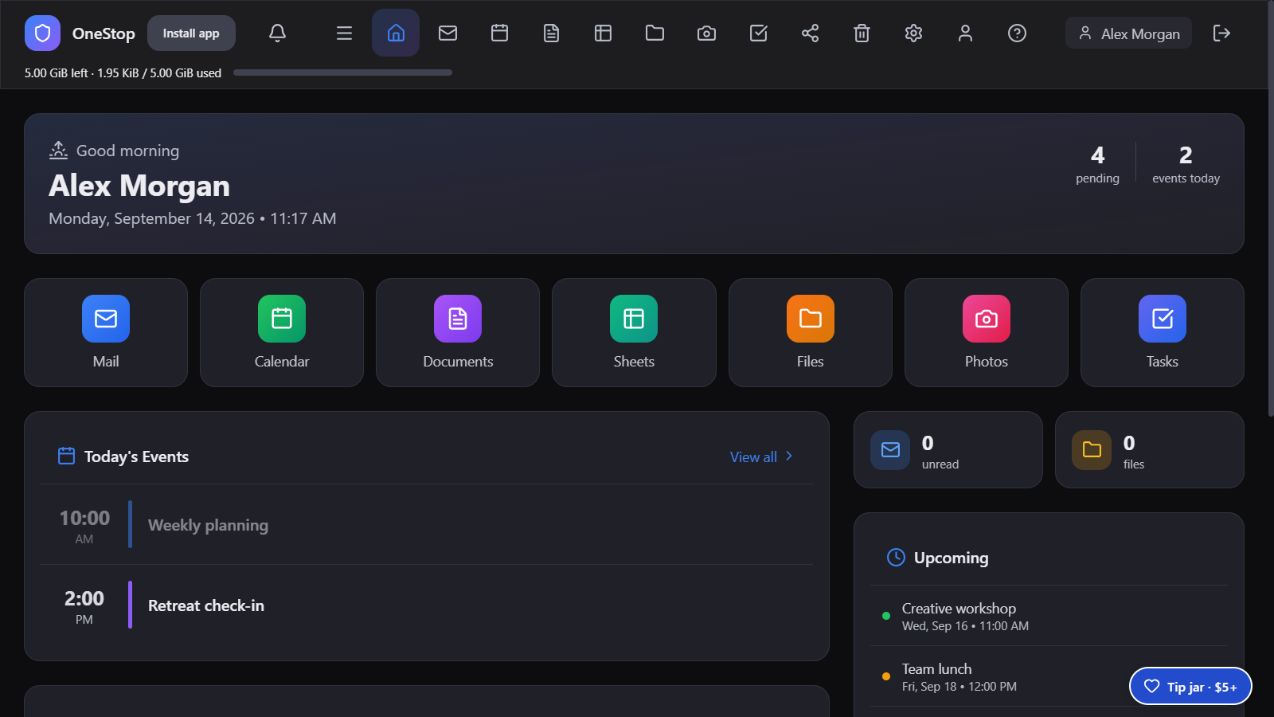
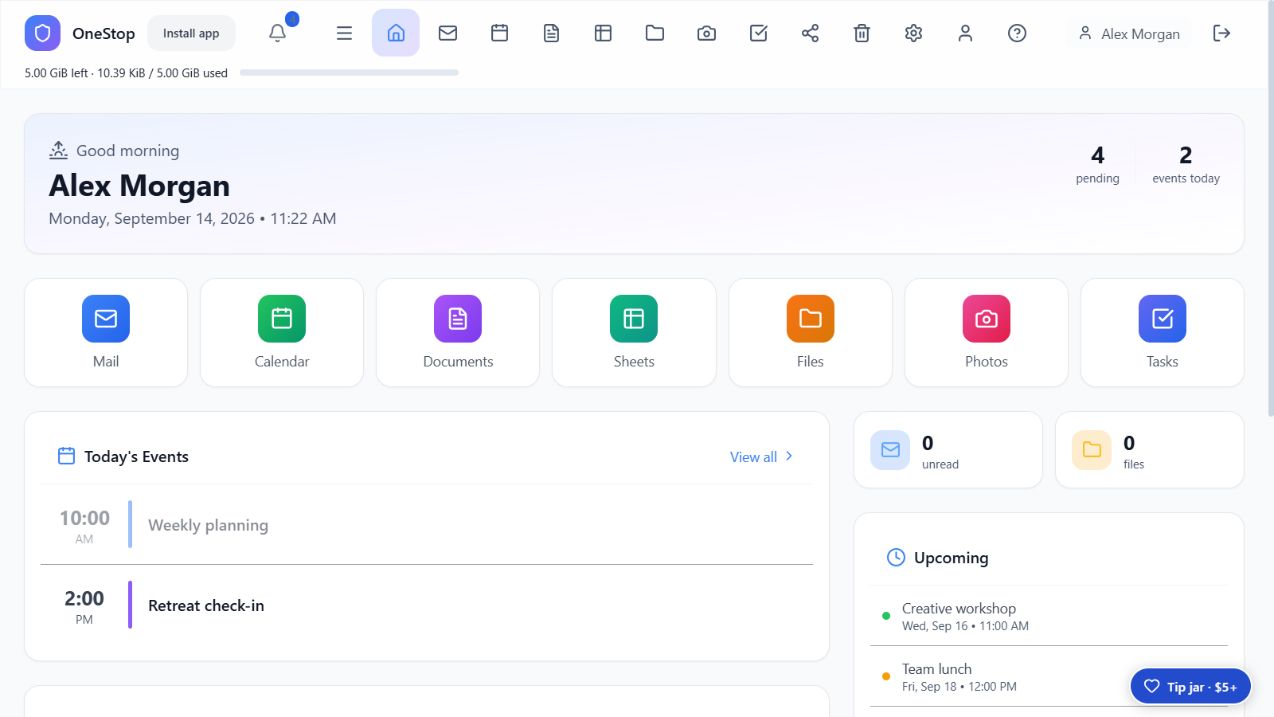
Use the navigation icons to open each workspace. The storage bar shows your account’s used space, limit and remaining capacity. Account quota is different from the physical free space on the server disk.
Settings uses a left sidebar: select a category to see its controls on the right. Choose light or dark appearance and optional banner or background images under Appearance.
Photos, editing and memories
Upload photos, browse by date, organize albums, mark favorites and use People where available. Open a photo to move through the current collection or edit it. Photo tools include crop, rotation and image adjustments; save the edited result using the editor’s controls.
Memories are optional. Configure them under Photo preferences and use people, place and activity tags to help select relevant past photos. These are organizational features, not a promise of automatic recognition of every person, place or action.
Move from Google
Choose Import Google Drive / Photos in Files or Settings → Import data. Use the supported Drive connection workflow or an exported library. Google Photos migration uses a Google Takeout export. Follow the import screen’s preparation instructions and retain the export until you verify the imported files. This is an import, not continuous Google synchronization.
Documents: write, space and print
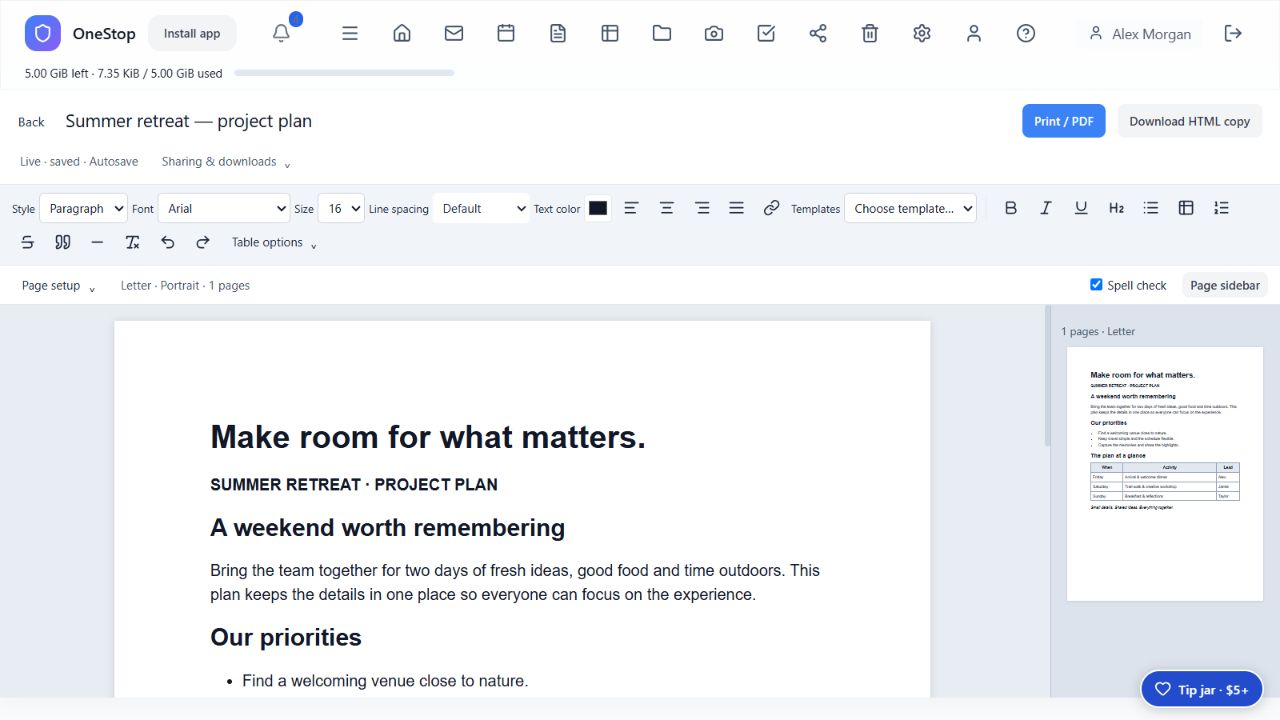
Create a document from Documents or Files, or choose an available template. The toolbar includes font, size, color, headings, lists, alignment, links and table controls. Changes in the collaborative editor autosave; wait for the saved status before closing.
Line spacing
Place the cursor in a paragraph, or select several paragraphs. Choose Line spacing: Default, Single, 1.15, 1.5, Double, 2.5 or 3. Spacing applies to paragraphs and headings, including paragraphs inside lists and tables. It is saved with the document and carried into collaboration, previews, print output and HTML downloads. Default or Clear formatting restores inherited spacing.
Paper, margins and page boundaries
Open Page setup to choose paper size, orientation and margins in inches. Default margins are one inch. The editor shows page boundaries and the optional Live page view sidebar shows page thumbnails. Toolbars stay above the scrolling work area.
OneStop’s measured layout supplies the editor and previews. A single paragraph, list or table taller than the printable area may flow differently when printed; split oversized blocks when exact page matching matters.
Spell check, printing and downloads
Enable Spell check and use your browser’s spelling suggestions on underlined words. Select Print / PDF to preview, then print or save as PDF. Match the chosen paper size, use 100% scale and turn browser headers and footers off for the closest match. Printer and browser settings can change pagination.
Download HTML copy creates a separate copy; it does not replace autosave or create a Word file. Uploaded Office files use their own supported edit/save workflow in Files. Complex Office formatting may not round-trip exactly.
Spreadsheets
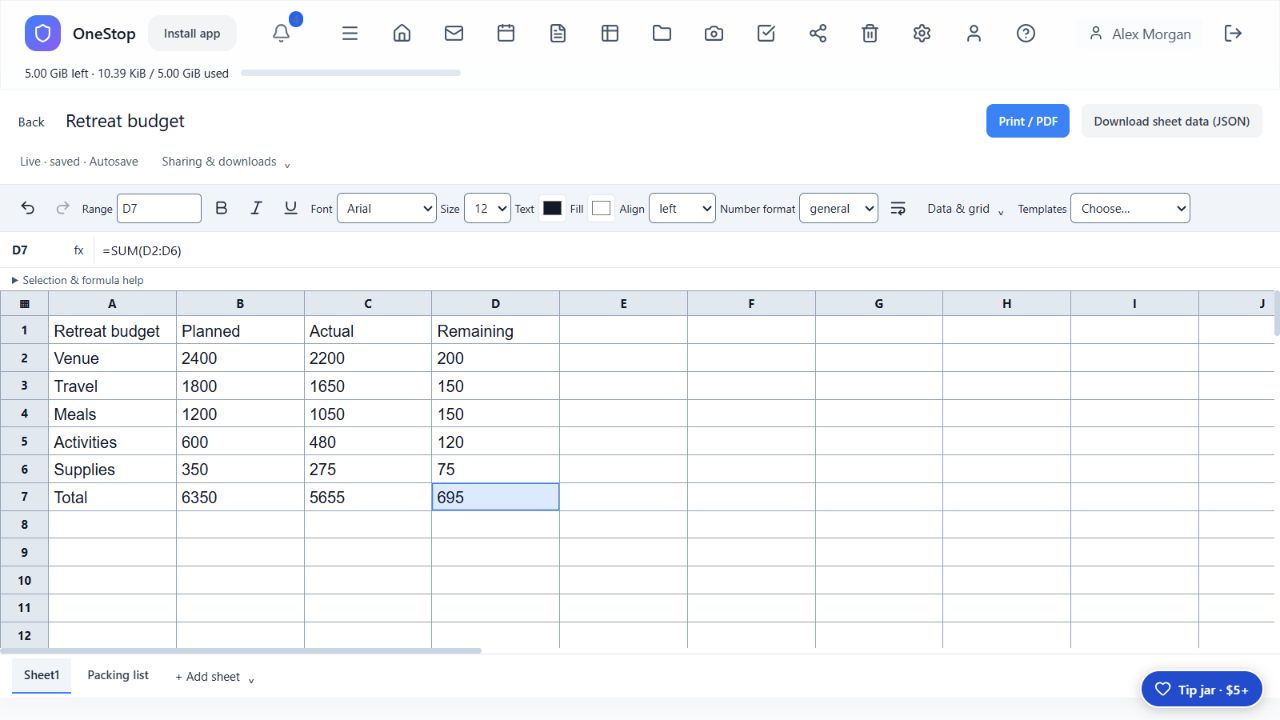
Create a spreadsheet or choose a template. Use the tabs at the bottom and Add sheet to create multiple worksheets. Cross-sheet references include =Sheet1!A1 and =SUM('Monthly Budget'!A1:A10). Use Formula help for the supported function set; this is not full Excel compatibility.
Drag across cells to select a range, Shift-click to extend it, or use the top-left Select All control. Ctrl+A selects the grid; double-click a cell to edit. Ctrl+C copies a selected range as tab-separated text. Apply fonts, colors, alignment, wrapping and number formats from the toolbar. Large batch changes are limited to 10,000 cells.
The grid scrolls beneath the toolbar. Print / PDF opens a preview. Download sheet data (JSON) downloads the collaborative workbook’s data; it is not an XLSX export. Uploaded XLSX files use the separate Office editing workflow.
Files, previews and desktop synchronization
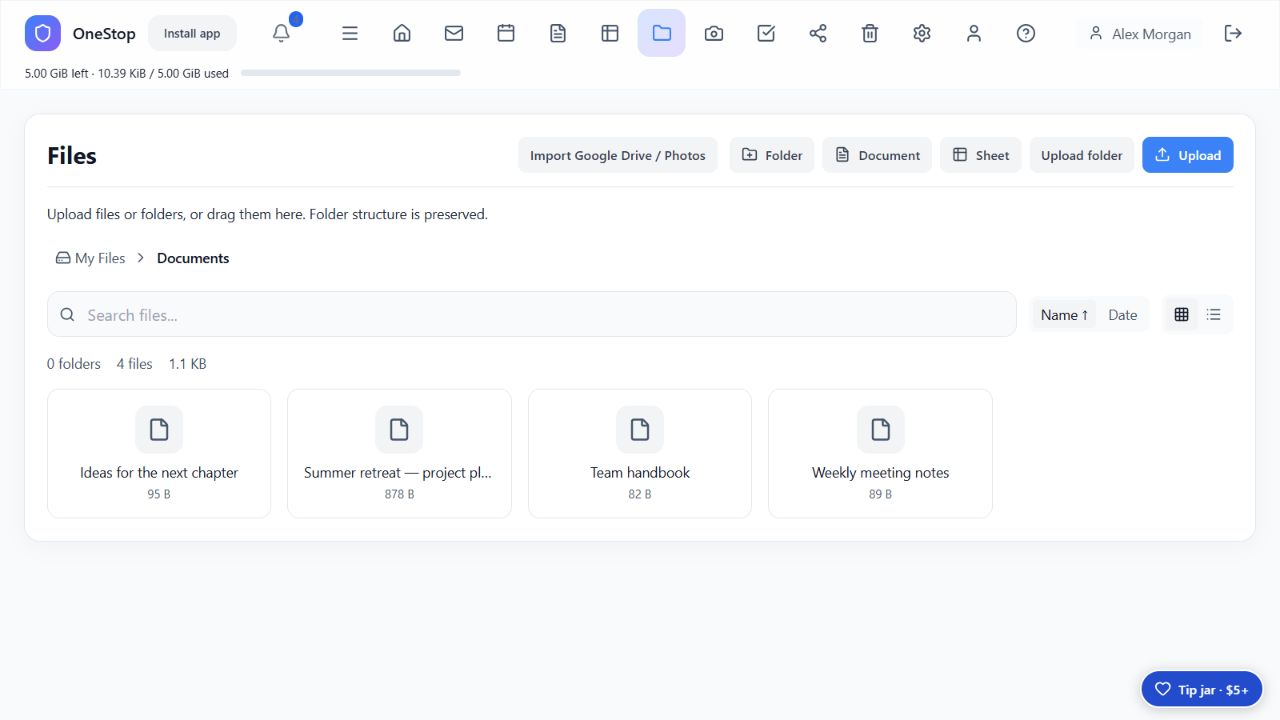
Create folders and use breadcrumbs to navigate. Upload individual files or use Upload folder; drag and drop files or folders into Files. Folder uploads preserve hierarchy. Use the available move, copy, download and trash actions to organize items.
Open a file to preview supported text, images, PDF, audio and video. Browser media support depends on the file’s codec; unsupported formats may need downloading. Supported uploaded TXT, DOCX and XLSX files expose editing controls in the file view. Preview and editing are different: not every previewable format can be edited.
Desktop Sync
Download the Windows client from Settings → Desktop & phones on your OneStop server. Generate a pairing code there, enter the server’s HTTPS address and code in the client, and choose a local folder. Check the client’s connection and sync status before pairing again.
Files synchronize in both directions. Conflicting edits are preserved as conflict copies. The sync folder can contain Downloads, Documents, Spreadsheets, Photos, Music and Video subfolders. Opt-in Windows default-folder changes are separate from sync; applications with their own saved download location may still need that location changed in their settings.
Keep a separate backup. Synchronization can propagate changes and deletions; it is not a historical backup. Downloaded desktop copies are ordinary local files, so protect the computer and disk.
Calendar and invitations
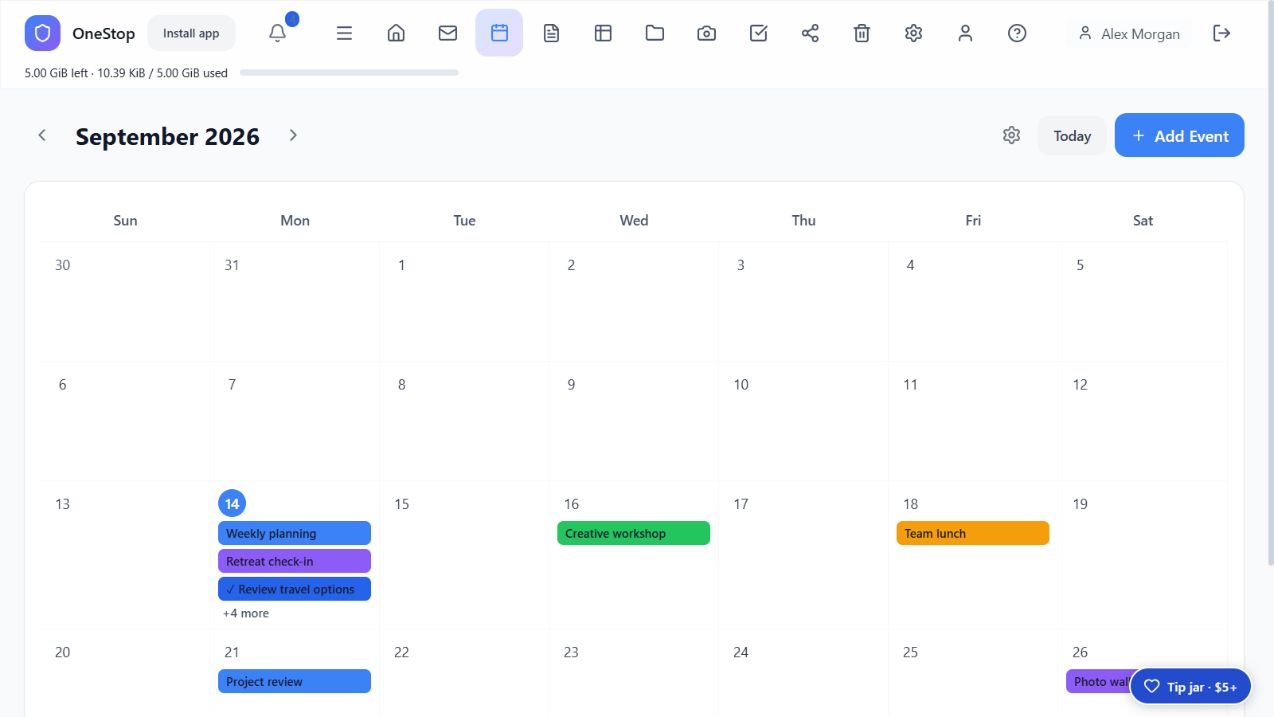
Create an event with its title, dates, times and available details. To invite someone, configure a working outgoing SMTP mailbox in Mail, save the event, and use its invitation controls to enter recipients. A connection or delivery error needs attention before assuming guests received an invitation.
Supported incoming email invitations are added to Calendar through mailbox synchronization. Updates and cancellations are matched to the existing invitation. Suspicious invitations may be held; unsupported invitation formats may require manual handling. Receiving an event does not necessarily mean you have accepted it or sent an RSVP.
Tasks with due dates also appear in Calendar. Review time zones and all-day dates when importing events.
Tasks
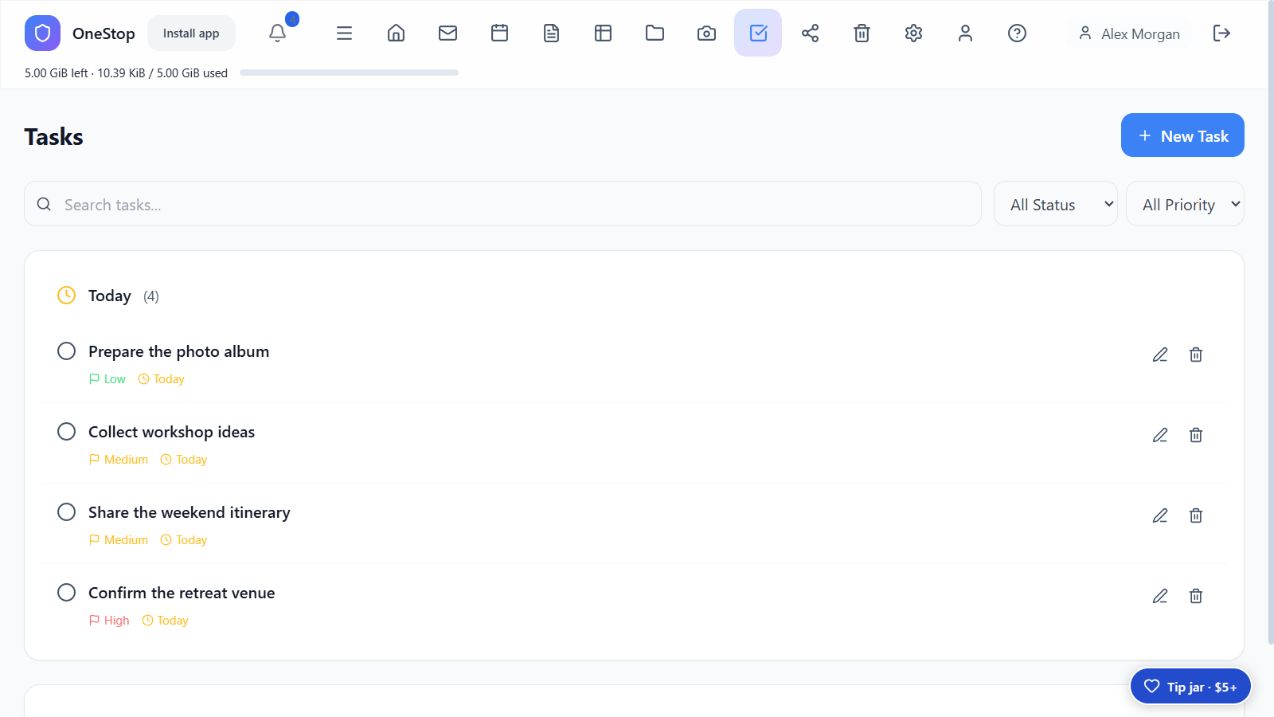
Create and edit tasks, set available priority and due-date fields, and mark work complete. Dated tasks appear in Calendar. Keep contact information in Contacts for reuse where the task form offers it. Do not assume that entering a name or email automatically sends an assignment message.
Contacts
Store names, business details, email, work/mobile/home telephone numbers, address and notes. Add a contact photo or business-card image using the upload controls. Address/map links open a map destination supported by the device or browser.
Use stored contact addresses in Mail and invitation controls where a contact picker is offered. Saving a contact alone does not create an event, task or outgoing message.
Open Mail and configure the IMAP and SMTP details required by your provider. Use its supported account or app-password authentication requirements. OneStop connects to an existing mailbox; it is not a replacement public email-delivery server.
The server polls configured mailboxes automatically while it is running. You can also request a refresh. Use inbox/folder navigation, search, Compose, Reply, Reply All and Forward. Open supported attachments in a closable preview or download them.
HTML messages are sanitized and isolated for display. Phishing warnings identify suspicious indicators; they are advisory and do not prove a sender is genuine. OneStop does not independently verify all sender-authentication results. Continue using your email provider’s spam and phishing protection.
Faces and people
Optional face grouping processes photos on the OneStop server. Review suggested groups and labels; detection can miss or misidentify people. Photo face grouping is separate from passkey sign-in and is not identity verification.
Notifications and phone apps
Review in-app alerts through the notification control. Browser and device permissions affect whether alerts can appear outside the page; a server must remain running to perform background work.
Separate Android and iPhone apps are under development. Existing test hosts and newer development previews are not finished Google Photos/Docs/Sheets equivalents and should not be represented as store-ready releases. iPhone distribution requires Apple signing and build infrastructure.
For supported camera-backup test builds, connect to your own OneStop server using the app’s supported credentials or pairing flow and grant photo permissions. Phone power restrictions and background-execution limits affect automatic backup; verify that originals arrive on the server.
Settings and sharing
Select categories in the left sidebar for appearance, sign-in/security, accounts, storage, desktop/phones, photo preferences, imports, backup/access, file protection and security activity. Protected changes require a recent password or passkey verification.
On Sharing, select an item and permission, set an expiry and optionally restrict the recipient or add a password. Copy the created link and revoke it when no longer needed. A link without recipient/password restrictions can be used by anyone who possesses it until it expires or is revoked. Edit permission enables supported collaborative editing.
The tip jar directs voluntary tips to Greenlyz, with a $5 USD minimum. Payment processing is handled through the Greenlyz/Stripe flow; a tip does not buy storage or unlock features. Ordinary OneStop installations do not need Greenlyz’s Stripe secret key.
Accounts, quotas and backups
Only administrators create accounts and adjust account quotas, including their own. Decreasing a quota does not delete existing files; additional storage-consuming operations may be blocked while the account is over its limit. Increasing a quota does not create physical disk capacity.
Backup & remote access provides instructions, installed administrator-tool commands, a server address and a connection test. It does not create a VPN, open your router, or automatically schedule a backup. Its connection test does not prove outside-network reachability.
Use the installed backup/restore tools as Windows administrator. Full-server backup pauses services for consistency. Keep the encrypted library and recovery key in protected storage outside this computer, and test restoration before relying on it. Never paste setup codes, passwords or recovery keys into support messages.
Security and privacy
Remote access requires HTTPS. Stored file and mail contents are encrypted with server-managed keys: this is not end-to-end encryption, and an administrator with access to the server’s keys can decrypt them. Password/passkey policy, sessions, sharing restrictions and device revocation govern access.
The local scanner checks uploads, sync completion, file access and email attachments. A detected threat or failed inspection blocks the protected operation. The scan limit is 250 MB per file; unsafe encrypted archives, exceeded scan limits and unavailable or stale protection can block access.
Check protection status reports scanner health with a green check or a red failure explanation. It is not a scan of the entire library and cannot guarantee that every threat will be detected. Keep Windows, scanner definitions and OneStop updated.
An unsigned-publisher prompt is different from a malware detection. If Defender reports a threat, leave the file quarantined, retain detection details and contact support. Do not disable protection or add an exclusion to install OneStop.
See the OneStop privacy notice for data handling and operator responsibilities.
Help, FAQs and support information
- Open Help & FAQs from OneStop’s navigation, Settings or sign-in page. It is also available at
/helpon your own OneStop server. - Use Search common questions to search for a topic such as setup, printing, sync or security. Expand a question to read its answer.
- When signed in, select Copy support information. The report includes the running server version, operating-system platform, architecture, Node.js runtime, original installation date when recorded, last successful setup/update date and recorded installer version. Older dates may be shown as not recorded; this does not mean your data is missing.
- Select Submit a help request to open Greenlyz Helpdesk. Paste the report and describe what happened, when it happened, the steps to reproduce it and the relevant error. If clipboard access is unavailable, select and copy the report manually.
The support report excludes account names, server addresses, file paths, credentials and documents. Opening Helpdesk does not attach logs or private files automatically. Review any extra information before sending it; never send passwords, setup codes, recovery keys, API keys or session tokens.
Your local OneStop administrator remains responsible for creating accounts and resetting access. Greenlyz Helpdesk does not automatically have access to your private server or its accounts.
Troubleshooting
Service setup failed
Do not delete the data folder. Read C:\Program Files\OneStop\install-service.log and the logs in your OneStop data directory. The installer’s runtime line number is not the underlying error. The 2.1.21 installer includes the scanner-startup retry repair for Windows PowerShell 5.1; no separate repair script is required.
Port 3310 is already in use
Use the cumulative 2.1.21 installer. It includes the earlier fix that prefers the saved scanner port and selects an available alternative in 3310–3399 when necessary. Do not kill an unrelated process, expose the scanner port to the internet or point OneStop at an unknown scanner. The selected port is written to config.json as malwarePort.
File protection is not ready
Check protection\clamd.log, protection\freshclam.log and protection\readiness.log in the data directory. Confirm available memory, current scanner definitions and the status of the OneStopAntivirus and OneStopDefinitions services. A red status can mean scanner unavailability, not necessarily an infected file. File access remains blocked while required scanning is unavailable; do not disable protection to clear the warning.
Silent setup refuses to continue
Check that your deployment command explicitly accepts the current agreement with /ACCEPTTERMS=2026-09-14.2, after you have reviewed it. An older terms version does not satisfy this installer. In interactive setup, read the agreement and select its acceptance checkbox if you agree.
Support information shows older or missing dates
Installation dates from older installers may be unavailable. Compare the running Version with the Installer version and last successful setup/update date. If the running version is still old after upgrading, retain the installation logs and submit a help request rather than repeatedly reinstalling or deleting data.
HTTPS or sign-in fails on another computer
Confirm the correct server address, DNS, certificates and network reachability. Register passkeys against the permanent address. A second server cannot take over an existing hostname merely by entering it during setup. Existing users sign in; contact the administrator for account recovery.
Mail or imports stop
Review the displayed error, provider connection and credentials, available quota and server disk space. Keep original exports until you verify the imported library. Do not repeatedly start duplicate imports to clear an error.
For product support, use Greenlyz Helpdesk and include your support information. Remove secrets and private document contents from any logs before sharing them.